SwiftUI vs UIKit in 2027: Which Should You Choose for Your iOS App?
Nov 16, 2026 App Development
Nov 16, 2026 App Development
Nov 16, 2026 App Development
If you are planning a new iPhone app or modernizing an existing one in 2027, the SwiftUI vs UIKit question will come up early. It shapes how fast your team ships, how much the app costs to maintain, and how easily you can add the features users now expect.
The stakes are higher this year. iOS 27 brings deeper Apple Intelligence features, foldable and larger-screen iPhones demand layouts that adapt to any window size, and on-device AI is becoming a standard part of good apps rather than an extra.
This guide explains the real differences between SwiftUI and UIKit from a business point of view: cost, timeline, team, AI readiness and long-term upkeep.
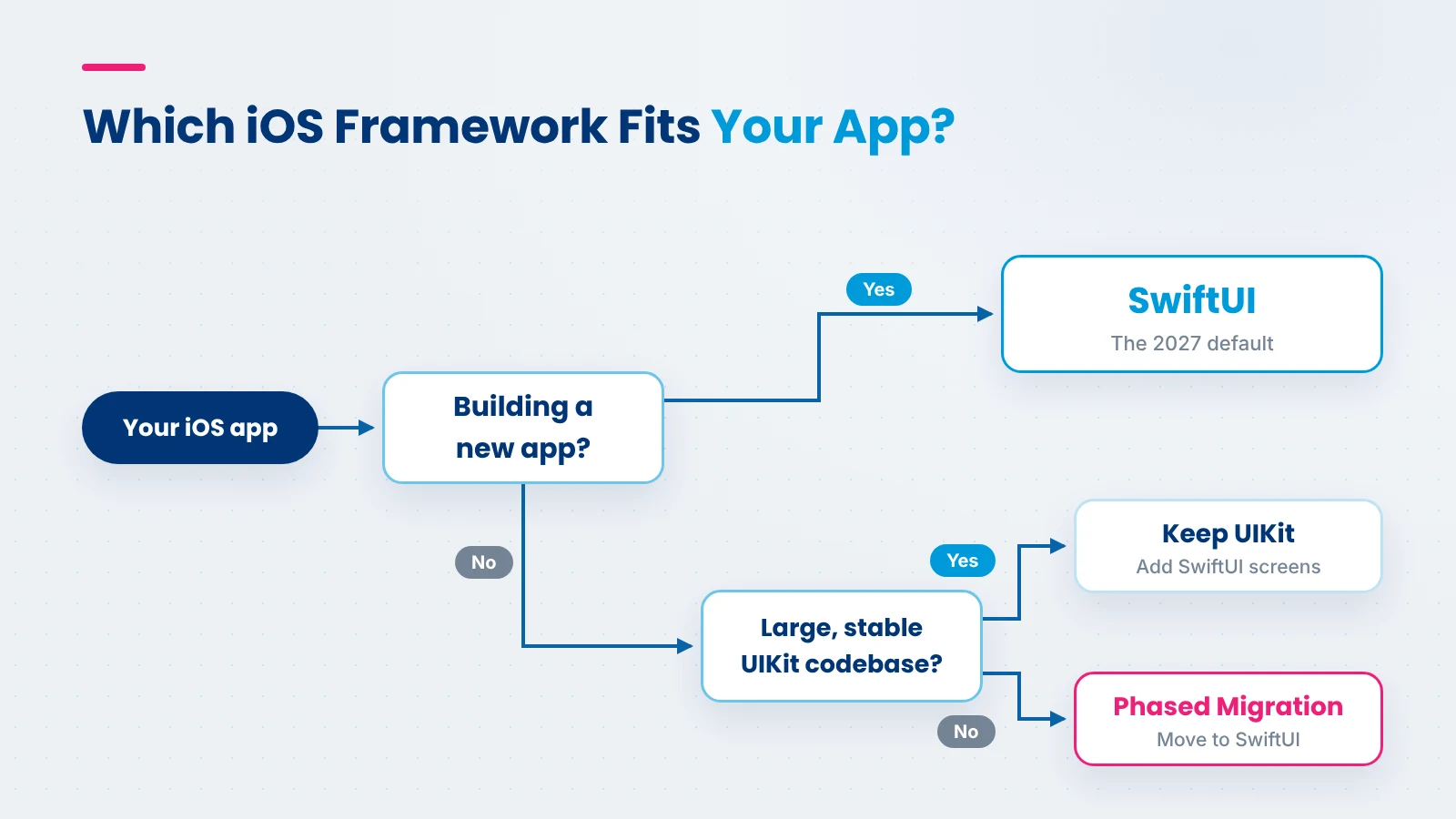
In the SwiftUI vs UIKit choice for 2027, SwiftUI is the right default for most new iOS apps. It is faster to build with, adapts more easily to new screen sizes, and fits naturally with Apple’s newest AI frameworks. UIKit is still the better choice for large legacy apps, highly custom interfaces and apps that must support older iOS versions. Many serious apps use both.
Choose SwiftUI if:
Choose UIKit if:
A lot of confusion in the swift vs swiftui debate comes from comparing things that are not the same kind of tool. Here is the simple version.
Swift is the programming language. Apple introduced it in 2014 to replace Objective-C, and it is now the standard language for iOS development. The Swift project is open source, and whether your team uses SwiftUI or UIKit, they write the code in Swift.
UIKit is Apple’s original framework for building iPhone and iPad interfaces. It has been around since the first iPhone SDK. With UIKit, developers describe each step: create a button, place it, update it when data changes. This gives deep control, but it also means more code to write and maintain.
SwiftUI is Apple’s newer framework, introduced in 2019. With SwiftUI, developers describe what the screen should look like for a given state, and the framework updates the interface automatically when that state changes. The result is less code, live previews in Xcode, and one approach that works across iPhone, iPad, Mac, Apple Watch, Apple TV and Vision Pro.
So the real decision is not Swift versus SwiftUI. It is SwiftUI versus UIKit, with Swift underneath both.
This table sums up how the two frameworks compare on the points that matter most to product owners, from development speed to SwiftUI vs UIKit performance on modern layouts.
| Factor | SwiftUI | UIKit |
|---|---|---|
| Learning curve | Easier for new developers; different thinking for UIKit veterans | Steeper, but well understood by experienced iOS teams |
| Development speed | Faster for most screens, with live previews | Slower, with more code per screen |
| Minimum iOS version support | iOS 13 and later; newest features need recent iOS versions | Works on very old iOS versions |
| Custom UI control | Good and improving; some edge cases need UIKit | Full, pixel-level control |
| Adaptive and foldable layouts | Built to adapt to size changes with little extra work | Possible, but needs more manual layout work |
| AI feature integration | Natural fit with Foundation Models and App Intents | Works, but often needs extra bridging code |
| Testing | Logic is easy to test; UI testing is still maturing | Mature testing tools and patterns |
| Long-term maintenance | Smaller codebase, easier to update | Larger codebase, more upkeep |
| Talent availability | Growing fast; most new iOS developers learn it first | Large pool of experienced developers |
The framework you pick affects your budget long after launch. Start with the market benchmarks. According to Clutch’s app development pricing data, the average app project costs about $90,780 and takes around 11 months, most reviewed projects fall between $10,000 and $49,999, and iOS developers typically charge $25 to $49 per hour. Framework choice moves your project within these ranges; it rarely takes it outside them.
SwiftUI screens generally take less code and less time to build, especially forms, lists, settings and dashboards. That usually puts a standard SwiftUI app toward the lower end of its range. UIKit builds with heavy custom UI tend to need more hours, which pushes them toward the higher end.
Live previews let designers and developers review screens without running the full app. That shortens feedback loops and reduces back-and-forth during design reviews. UIKit projects can move just as reliably, but each screen tends to take longer.
A SwiftUI project can often be delivered by a smaller team, because each developer covers more ground. UIKit projects with heavy custom UI may need more senior developers who know the framework in depth.
A common industry benchmark is that yearly app maintenance runs about 15% to 20% of the original development cost, as DesignRush notes. For an app that costs $90,000 to build, that is roughly $13,500 to $18,000 a year. Less code usually means fewer bugs and faster updates when Apple ships a new iOS version, so a SwiftUI codebase often stays closer to the lower end of that range.
The SwiftUI vs UIKit cost gap flips for existing apps. If you already have a large UIKit app, rewriting it in SwiftUI just for the sake of it is rarely worth the cost. Adding SwiftUI gradually to new screens is usually the smarter budget decision.
Also Read: Mobile App Development Cost
Screen sizes are no longer predictable. Foldable iPhones, larger displays and multi-window use on iPad mean your app has to look right in many shapes, sometimes changing while the user is in the middle of a task.
An adaptive app rearranges its content when the available space changes. A list might become a two-column view when a device unfolds, or a detail panel might appear beside the main screen. Users expect this to happen smoothly, without losing their place or their data.
Planning for this early is much cheaper than fixing it later. That means designing flexible layouts that follow Apple’s layout guidelines, testing on several screen sizes, and keeping app state separate from the screen it is shown on.
SwiftUI has the advantage here. Its layouts respond to size changes by design, so the same screen can stretch, split or reflow with relatively little extra work. Apple also tends to bring new layout and windowing features to SwiftUI first.
UIKit can support all of these layouts, but it usually takes more manual work with size classes, constraints and trait changes. For apps that need to look great on foldable and larger-screen iPhones in 2027, SwiftUI keeps that effort lower.
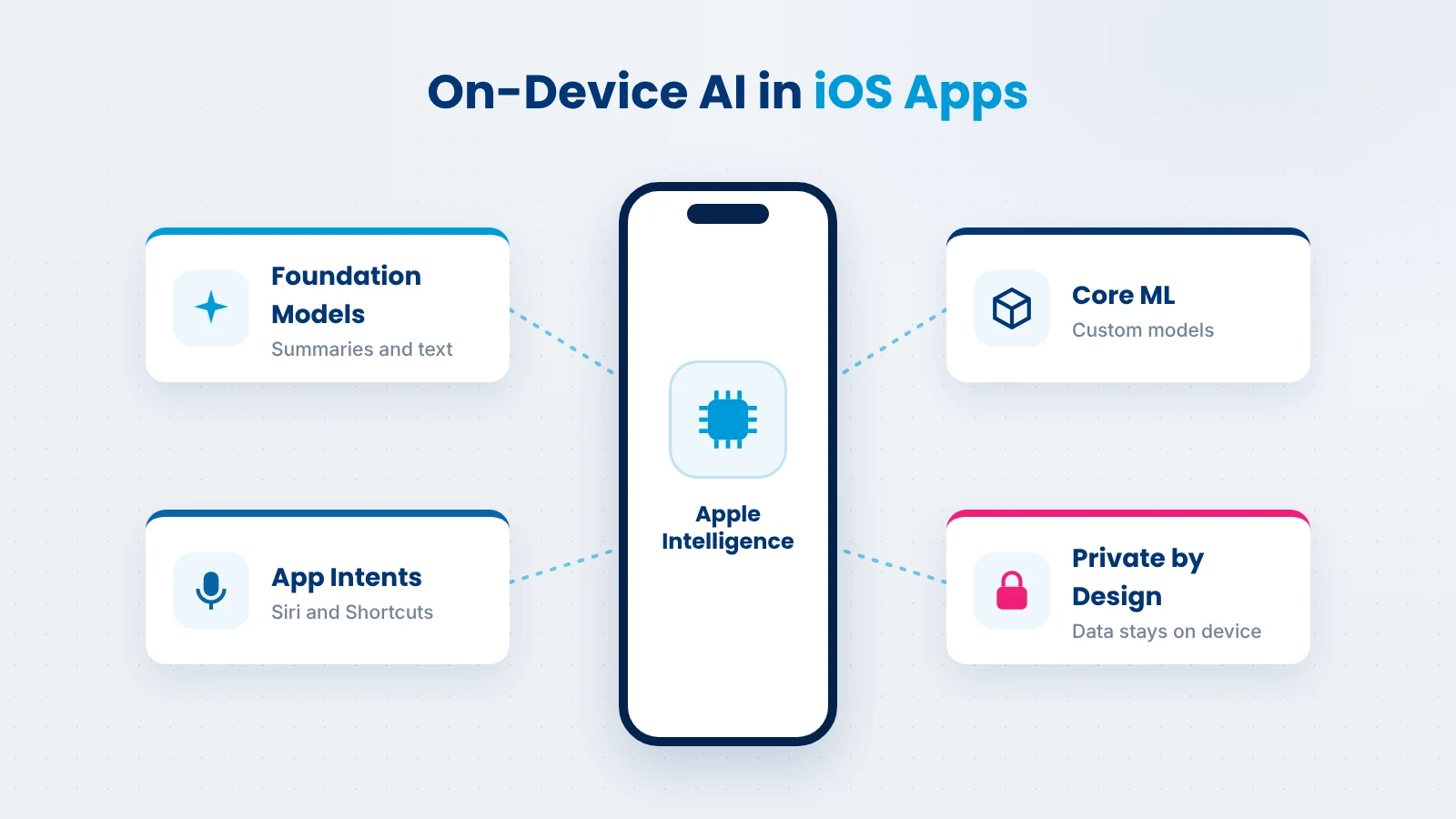
AI is now part of what users expect from a good iPhone app. The good news is that Apple gives developers several ways to add it, many of them running on the device itself.
Practical features a business can add include:
The Foundation Models framework is a native Swift API that gives apps direct access to the on-device model that powers Apple Intelligence. Apps can use it for language understanding, structured output and tool calling, such as summarizing text or pulling key details out of a document, without sending data to an external server.
This matters for privacy. Data processed on the device stays on the device, which helps apps in healthcare, finance and other regulated fields. It can also reduce cloud AI costs and keep features working offline.
App Intents lets your app expose its content and actions to the system, so users can reach them through Siri, Spotlight, Shortcuts, widgets and Apple Intelligence. A delivery app could let users check an order status by voice, or a fitness app could start a workout without opening the app.
The more your app’s key actions are available this way, the more often users can reach your app from outside it.
When your app needs a model trained on your own data, such as a product classifier or a fraud signal, Core ML runs it efficiently on Apple hardware. Models can be trained elsewhere and converted for use on iPhone and iPad.
AI coding assistance in Xcode and other tools now helps developers write, explain and refactor code faster. These tools tend to work best with SwiftUI, because its code is shorter and more predictable. UIKit projects benefit too, especially for repetitive layout and boilerplate code, but the gains are usually smaller.
In practice, SwiftUI apps usually adopt Apple’s newest AI features faster, because Apple designs those APIs with SwiftUI in mind. If you are planning AI features beyond what Apple provides, our AI development services cover custom models, LLM integration and AI agents.
Also Read: How Much Does It Cost to Develop an AI App
SwiftUI being the default for new apps does not make UIKit outdated. Apple continues to update UIKit every year, and countless existing apps were built on it. UIKit remains the stronger choice in these situations:
The key point is that this is rarely an either-or decision. UIKit apps can adopt SwiftUI screen by screen, which is how most mature teams handle the transition.
Apple built SwiftUI and UIKit to work side by side, so you don’t have to pick one for the whole app. Two bridges make this possible:
Here is a short example of adding a new SwiftUI screen to an existing UIKit app:
import SwiftUI
import UIKit

struct RewardsView: View {
    var points: Int
    var body: some View {
        VStack(spacing: 12) {
            Text("Your Rewards").font(.title2.bold())
            Text("\(points) points available")
        }
        .padding()
    }
}

// Inside an existing UIKit view controller
func showRewards() {
    let screen = UIHostingController(rootView: RewardsView(points: 1200))
    navigationController?.pushViewController(screen, animated: true)
}
The rest of the app keeps working as before. This is why gradual adoption is usually lower risk than a full rewrite.
A UIKit to SwiftUI migration makes sense for many apps, but not all of them, and almost never as a single big rewrite. Use this checklist to decide.
Migration is likely worth it if:
Migration can wait if:
A phased migration approach
This approach spreads the cost over regular releases and keeps the app shipping updates throughout.
Before choosing between SwiftUI and UIKit, it is worth asking whether your app needs to be native iOS at all. Frameworks like Flutter and React Native let one codebase run on both iOS and Android.
Native iOS (SwiftUI or UIKit) is worth it when:
Cross-platform makes sense when:
Many companies start cross-platform to validate an idea, then move key parts to native as the product grows. If you are weighing both routes, see our cross-platform app development services for how that option compares.
At Xicom, we start every iOS project with the framework decision, not after it. We look at your existing code, your users’ iOS versions, your AI plans and your budget, then recommend SwiftUI, UIKit or a mix of both.
With 20+ years in software development, 750+ clients and 1,800+ projects delivered, our team of 350+ IT professionals has built and modernized iOS apps across healthcare, fintech, retail, logistics and more. We hold a 4.8 rating on Clutch and follow CMMi Level 3 processes for predictable delivery.
Whether you need a new SwiftUI app, a phased migration from UIKit, or AI features added to an existing product, you can work with us on a project basis or hire iOS developers to extend your own team. Explore our iOS app development services or talk to us about your app.
The SwiftUI vs UIKit decision in 2027 comes down to where your app is today and where it needs to go. For new apps, SwiftUI offers faster builds, lower maintenance and the smoothest path to Apple Intelligence, on-device AI and foldable-ready layouts.
For established apps, UIKit remains reliable, and gradual SwiftUI adoption is usually the smartest way forward. The best results come from choosing deliberately, based on your users, budget and roadmap, rather than following trends.
Yes, for most enterprise use cases. SwiftUI now handles complex navigation, data-heavy screens and adaptive layouts well. Enterprise teams often still keep UIKit for a few specialized components, such as rich text editing or highly custom controls, and combine both frameworks in one app without problems.
In most cases, yes. SwiftUI needs less code per screen, and live previews in Xcode shorten design and review cycles. The speed advantage is largest for standard screens like lists, forms and settings. Highly custom interfaces can narrow the gap, since they may need UIKit components anyway.
Apple has not announced any plan to deprecate UIKit, and it continues to receive updates every year. SwiftUI is clearly Apple’s direction for new interfaces, but UIKit remains fully supported. Existing UIKit apps are safe, and they can adopt SwiftUI gradually when it makes sense.
SwiftUI is usually the better fit. Its layouts respond to size changes by design, so screens can reflow when a device folds or unfolds with less extra work. UIKit can support foldable layouts too, but it typically needs more manual handling of size classes and constraints.
Yes. Frameworks like Foundation Models, App Intents and Core ML work with UIKit apps as well as SwiftUI apps. You may need some extra bridging code for the interface parts, and Apple’s newest examples tend to use SwiftUI, but the AI capabilities themselves are available to both.
It depends on the app’s size, the number of custom components and whether you migrate fully or in phases. A phased migration is usually priced like regular feature work, and Clutch data puts typical iOS developer rates at $25 to $49 per hour. A short code audit is the most reliable way to get a realistic estimate.
For most new apps, SwiftUI is the right starting point. It is faster to build with, easier to maintain, and best aligned with Apple’s AI and layout features. Add UIKit only where a specific component needs it, such as a complex custom control or advanced text handling.

Based on this article's topic
Kotlin vs Java for Android in 2027: compare Compose support, null safety, AI features, cost and migration to pick the right language for your app.
Fintech app development cost ranges from $35,000 to $450,000+. See prices by app type, feature and region, plus AI, compliance and running costs.

Explore 17 healthcare business ideas for 2027, from AI scribes and remote monitoring to small business ideas, plus steps to start a healthcare business.